AI and automation
Should you turn off Google Ads auto-apply recommendations?
Reviewed September 2026 · All guides
On an account spending EUR 10,000 a month or more, turn off every auto-apply type that changes bidding, keywords or match types, and keep at most the asset types you would approve anyway. Auto-apply recommendations make changes to a serving account without a person reviewing each one, and the types that move spend are the ones where a single change can cost more than the whole year of time it saved. Budget raises are the exception that is already handled: Google does not auto-apply them.
The setting is under Campaigns > Recommendations > Auto-apply settings (also reachable from Admin > Account settings > Auto-apply), and it is per account: an MCC with forty accounts has forty settings to check. The rest of this guide covers which types to switch off, which carry little risk, why Google's optimization score pushes toward accepting them, and how to find out what was applied in the past.
Where the auto-apply setting lives
In the Google Ads interface, open Campaigns > Recommendations and select Auto-apply settings at the top of the page; the same settings sit under Admin > Account settings > Auto-apply. The page lists recommendation types grouped by category, each with a checkbox. A History tab next to the settings shows when each type was turned on and a summary of recent auto-applied recommendations. The list of types changes over time and by account, so read what your account shows.
- Open the account (not the manager account) and go to Campaigns > Recommendations.
- Select Auto-apply settings. Read which types are ticked; accounts opened by Google reps or created through onboarding flows sometimes have several on.
- Untick the types you want reviewed by a person, then save.
- Open the History tab and note any changes in the last 90 days that you did not know about.
- Repeat for every account under your manager account. There is no MCC-wide switch for this in the interface.
Google also emails account users before some auto-applied changes go live. Those emails are easy to filter away, which is one more reason to decide the setting deliberately instead of relying on the notice.
Which auto-apply types are risky for large accounts
The risky types share one trait: they change where or on what the account spends, and the effect is not visible in the ad itself. Switch these off first.
Budget raises: not auto-applied, still pushed
Google states that auto-apply will not increase a budget, so "Raise your budgets" is not on the auto-apply list. It still sits at the top of the Recommendations page whenever a campaign is limited by budget, and accepting it by hand raises the daily budget without asking whether the marginal clicks are profitable. Say a campaign spends EUR 30,000 a month at a EUR 60 CPA and is limited by budget. Raising the budget buys the next auction tier, which often costs more per conversion than the average. The question is covered in Limited by budget; it is a decision about marginal CPA.
Broad match keywords and match-type upgrades
Recommendations to add broad match keywords or to upgrade existing keywords to broad match widen the queries the account can serve on. With Smart Bidding and clean conversion data, broad match can work well; without them, it pulls in queries you would never have bid on. Either way, it is a structural change to test, as described in Broad match with Smart Bidding.
Bid strategy changes
Types such as "Bid more efficiently with" a new strategy, "Set a target ROAS" or "Adjust your ROAS targets" change what the bid strategy optimizes for. A new strategy enters a learning period (bid strategy status "Learning"), and a target moved too far at once can cut volume or inflate CPA for a week or more. The usual rule of thumb is to move targets by no more than 15 to 20% at a time, which auto-apply does not respect by design.
Removing redundant or non-serving keywords
Removing keywords Google judges redundant sounds like housekeeping. In practice, a keyword that looks redundant to Google can be the one you use to route a query to a specific ad group, landing page or bid. Removing it moves traffic without anyone deciding where it should go.
Which types are lower risk
A few types change little about spend and are close to what a careful manager would do anyway. They are candidates to leave on if you want Google to handle the upkeep, provided someone reads the History tab.
- Adding sitelink, callout and structured snippet assets. They add ad real estate and do not change bids or targeting. Check that the generated text is accurate and within your brand and legal rules.
- Repairs that fix a problem with no spend decision attached, such as items flagged for a policy or setup issue. Read what each one does before leaving it on.
- Removing conflicting negative keywords is sometimes listed as low risk. It does change which queries serve, so on a large account it belongs in the reviewed group.
Responsive search ad recommendations that add headlines to existing ads sit in between (since 26 January 2026, "Add responsive search ads" is no longer an auto-apply type, so auto-apply does not create whole new ads). They leave budgets alone and change what the customer reads, and a generated headline can make a claim the business cannot stand behind. If copy is regulated in your market, keep them off.
The optimization score and its incentives
Optimization score is a percentage from 0 to 100% that Google shows per account and per campaign. It rises when you apply a recommendation, and it also rises when you dismiss one. That second part tells you what the score measures: how much of Google's recommendation list you have processed. Account performance does not enter it.
The incentives around the score are worth naming. Google Partners status for agencies has included an optimization score threshold, so an agency has a reason to keep scores high, and auto-apply is the cheapest way to do it. Google account representatives are often measured on adoption of recommendations. None of that makes a recommendation wrong, but it explains why they arrive with more urgency than their expected value on your account.
A workable policy: review the list weekly, apply what you would have done anyway, dismiss the rest with a reason, and let the score land where it lands.
How to find auto-applied changes in the change history
Before turning anything off, find out what auto-apply has already done. Two places show it.
- The History tab on the Auto-apply settings page shows when each type was turned on and a summary of recent auto-applied recommendations.
- Change history (Tools > Change history) lists every change to the account. Auto-applied changes show an auto-apply system user in the User column (labelled along the lines of "Recommendations Auto-Apply") instead of a person's email. Filter by that user and set the date range to the last 90 days. The change that turned a type on shows the email of whoever opted in.
- For each change, check the campaign's performance in the two to three weeks after it, compared with the weeks before. Pay most attention to new broad match keywords, removed keywords and bid strategy or target changes.
- Where a change hurt, reverse it deliberately: re-enable the removed keywords, pause the added ones, or revert the bid strategy. Reverting a bid strategy starts another learning period, so time it with that in mind.
If you manage the account with other people, agree in writing which types stay on. Otherwise the next person to open Recommendations may switch them back on to clear the score.
Where GoodLads fits
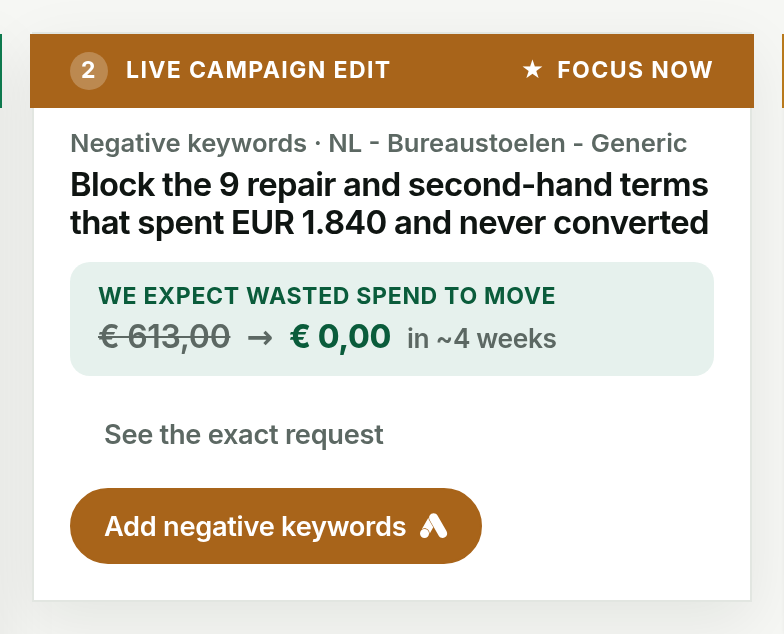
GoodLads has no auto-apply. It writes three recommendations per campaign, each with the account figure behind it, and nothing reaches Google Ads until you click apply on a specific one. Where it can, it applies a change as a Google Ads experiment or a new paused ad, so the running campaign keeps serving while the change is measured; the few levers that write to the live campaign, such as negative keywords, are marked in orange and ask for a second confirm. It does not tune bids or budgets across every campaign on a schedule, which is the job auto-apply and tools like Optmyzr do. For how to move a bid target safely by hand, see changing a Target ROAS.
Questions people ask
How do I turn off auto-apply recommendations in Google Ads?
Go to Campaigns > Recommendations, select Auto-apply settings at the top of the page (or Admin > Account settings > Auto-apply), untick the recommendation types you want to review yourself, and save. The setting is per account, so repeat it for each account under a manager account.
Which auto-apply recommendations should I turn off?
On a large account, turn off every type that changes bid strategies, targets, keywords or match types. Budget raises are not auto-applied. Asset additions such as sitelinks and callouts carry less risk if someone reviews them.
Does dismissing recommendations increase optimization score?
Yes. Optimization score rises when you apply or dismiss a recommendation, so it tracks how much of the list you have processed rather than account performance.
How can I see which recommendations were auto-applied?
Open the History tab on the Auto-apply settings page for a summary, or filter Change history by the system user that auto-apply writes under, which lists each change with its campaign and date.